 Bumblly
TextMint guide
How to export text messages from iPhone to PDF
You need a text conversation from your iPhone as one PDF file: to print it, to send it to someone, or to keep it. Apple's guide to Messages describes forwarding messages and sending screenshots, not saving a conversation as a file. This guide shows what does work, starting with the free ways.
We make TextMint, the app at the end of this guide. The free ways come first, and for a short chat they may be all you need.
The short answer
Three ways, from quick to complete
- A few messages: take screenshots and send or print them.
- A whole conversation: take overlapping screenshots or one screen recording, and turn them into one PDF with dates, times and page numbers.
- A WhatsApp chat: use WhatsApp's own Export chat. See how to save a WhatsApp chat as a PDF.
Free
What your iPhone can do by itself
Apple's guide to sharing messages describes two things: forwarding messages to someone else, and sending a screenshot when you want the bubbles and timestamps as they look in the conversation (Apple Support). It does not describe saving a conversation as a file.
- Screenshots. Press the side button and the volume up button at the same time. Screenshots are saved to the Photos app (Apple Support).
- Print a screenshot. Open it in Photos, tap the Share button, then swipe up to Print (Apple Support).
- Screen recording. Open Control Center and tap the Screen Recording button. The video is saved to Photos (Apple Support).
This works for a few messages. For a long conversation it gets hard: dozens of loose pictures, the same messages twice where screenshots overlap, and no page numbers.
Step by step
Make one clean PDF with TextMint
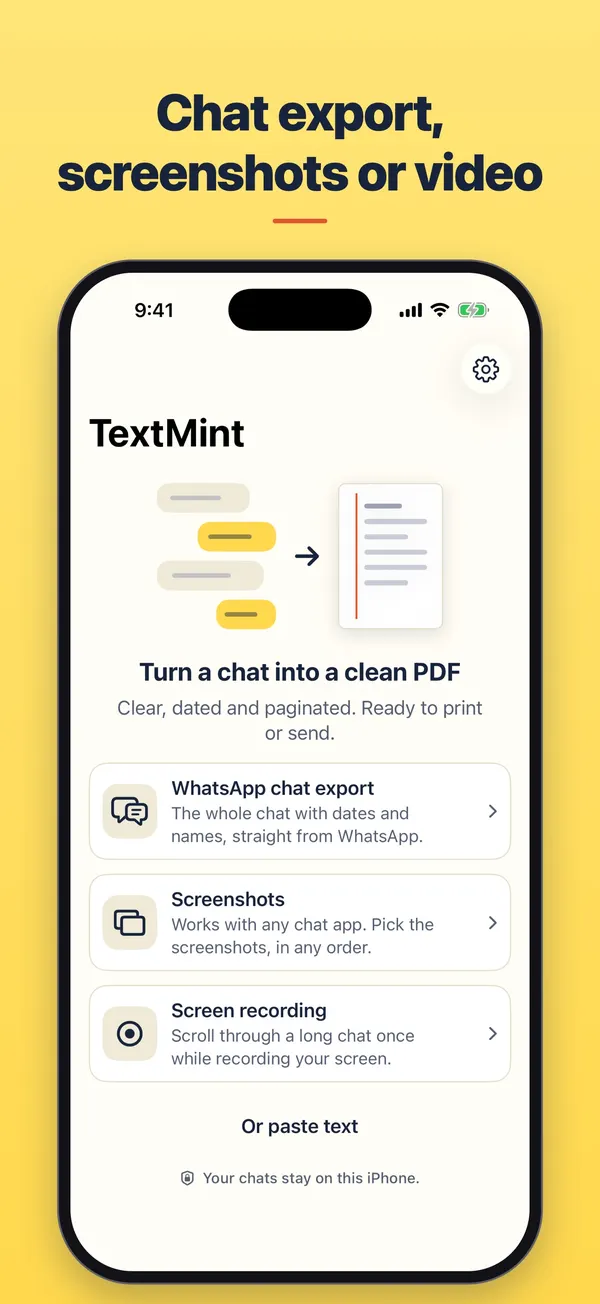
TextMint is an iPhone app that turns screenshots, a screen recording, pasted text or a WhatsApp export into a PDF. It cannot open your messages by itself: you choose what you give it.
- Take overlapping screenshots. Open the conversation at the first message you need. Take a screenshot, scroll a little less than one screen, and take the next. The last message of each screenshot should show again at the top of the next one.
- Or record the screen. For a long conversation, one screen recording is quicker. Start recording, scroll slowly from the first message to the last, then stop.
- Add them to TextMint. Open TextMint, tap Add a conversation and choose Screenshots or Screen recording. Pick the screenshots in any order, or pick the video.
- Let TextMint read them. TextMint puts the screenshots in order, removes the overlap and reads the text. All of it happens on your iPhone.
- Name the other person. Tap Options. Screenshots show no names, so type the other person's name under Names. Your own messages, on the right, are printed as Me.
- Export the PDF. Tap Export PDF to share or save it. The More menu has Print and Save to Files.
The document
What the PDF holds
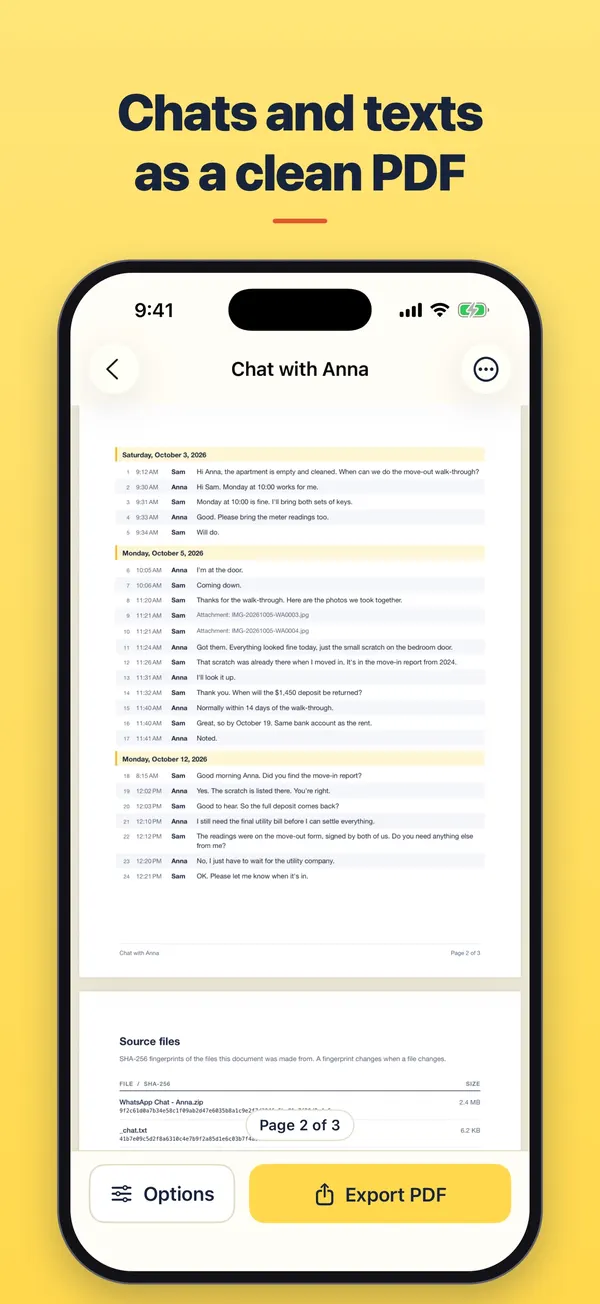
- Every message as a numbered row with its time and sender, under a heading for each day.
- "Page 2 of 9" at the bottom of every page, next to the title of the conversation.
- An optional cover page with the people, the first and last date, and the number of messages.
- An optional source files page that lists each screenshot or video with its SHA-256 fingerprint. A fingerprint changes when a file changes.
- A choice of layout: typed rows (Transcript), the screens as they looked (Original screens), or Both.
Screenshots often show a date only now and then, and sometimes only "Yesterday" or a weekday. TextMint works out those dates from the moment the screenshot or recording was made, and says so on the source files page. Where two screenshots do not overlap, the PDF shows a line that says "Screenshots do not connect here", so a gap is never hidden.
Cost and privacy
What it costs, and where your messages go
TextMint is free to download and to try. Without a purchase, an export holds the first 3 message pages and carries a PREVIEW mark. A full export is a one-time purchase: One Export for one conversation, or TextMint Pro for every conversation. There is no subscription.
Everything happens on your phone. There is no account and your conversations are never uploaded. See the TextMint privacy policy.
FAQ
Questions
Can TextMint read my Messages app by itself?
No. TextMint cannot open your messages. You give it screenshots, a screen recording, pasted text or a WhatsApp export.
How many screenshots can I add?
Up to 400 at a time. For a long conversation, a screen recording of up to 20 minutes is usually quicker.
Are photos in the conversation included?
Choose the Original screens or Both layout in Options. The PDF then shows the screens as they looked, photos included.
Can I export only part of a conversation?
Yes. In Options, turn on Only part of the conversation and pick From and To. Message numbers stay the same as in the whole conversation.
Will a court accept the PDF?
TextMint makes a clear, dated record of a conversation. Whether a document is accepted is up to the court or office you give it to. Ask a lawyer what they need.
Get TextMint
Turn a conversation into a clean, dated PDF
TextMint is free to download and to try. A full export is a one-time purchase, for one conversation or for every conversation. No subscription, no account, and your chats never leave your phone.
All TextMint guides · Export iMessages · Chat screenshots to one PDF · Print text messages
Sources
Sources
We link to the pages behind every statement about another app or platform. They can change after the date we checked them.
- Forward and share messages on iPhone, Apple Support, iPhone User Guide. Checked November 14, 2026.
- Take a screenshot on iPhone, Apple Support, iPhone User Guide. Checked November 14, 2026.
- View, share, and print photos on iPhone, Apple Support, iPhone User Guide. Checked November 14, 2026.
- Take a screen recording on iPhone, Apple Support, iPhone User Guide. Checked November 14, 2026.