 Bumblly
TextMint guide
How to turn chat screenshots into one PDF
Screenshots are the one thing every chat app allows. The trouble starts when you have forty of them: which comes first, which messages are on two screenshots, and how do you hand them over as one file? Here is how to take them well, and how to turn them into one PDF.
We make TextMint, the app at the end of this guide. The free ways come first, and for a short chat they may be all you need.
Free
The free ways, and their limits
- iPhone: screenshots are saved to Photos, and you can print one from the Share button (Apple Support, Apple Support).
- Android 12 and later: after a screenshot, Capture more captures a longer part of a screen that scrolls, as one tall picture (Android Help).
Either way you end up with pictures, not a document: no page numbers, the same messages twice where screenshots overlap, and nothing that says which picture comes first.
Before you start
How to take screenshots that work
- Start at the first message you need.
- Overlap them. Scroll a little less than one screen between screenshots, so the last message of one shows again at the top of the next.
- Do not crop or edit them. TextMint only joins screenshots of the same size. Cropped ones are kept whole but cannot be joined.
- Use one phone. Screenshots from two phones have different sizes and are not joined either.
- Keep the originals in Photos after you made the PDF.
Step by step
Turn them into one PDF with TextMint on iPhone
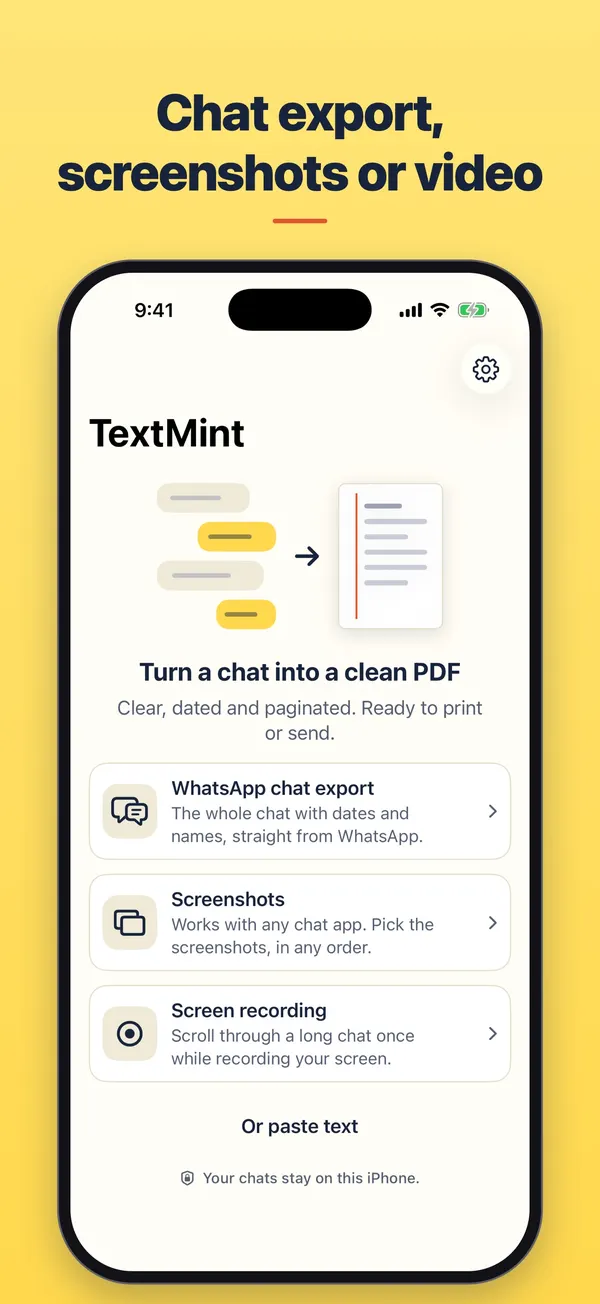
- Choose Screenshots. Open TextMint, tap Add a conversation and choose Screenshots.
- Pick the screenshots. Tap Choose screenshots, or Choose from all photos if they are not in your Screenshots album. Pick them in any order, up to 400 at a time.
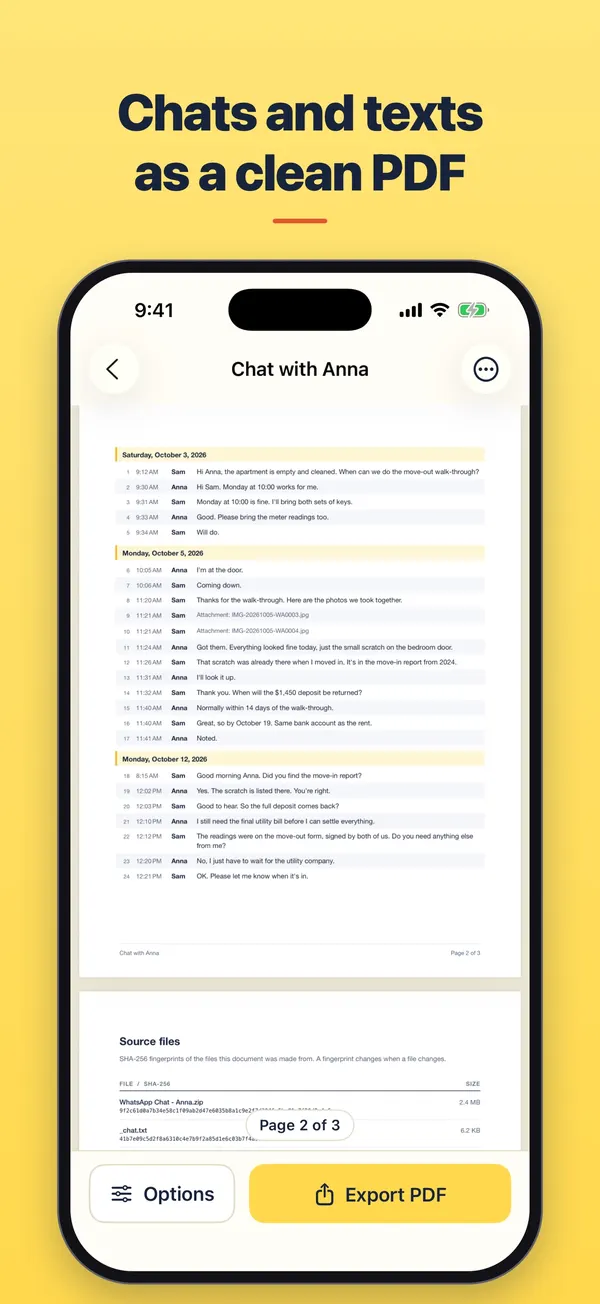
- Let TextMint sort them. TextMint puts them in order by their content, removes the overlap and the bars at the top and bottom, and shows a screen that you took twice only once.
- Choose the layout and names. In Options, choose Transcript, Original screens or Both, and type the other person's name under Names.
- Export the PDF. Tap Export PDF, or use More for Print and Save to Files.
Android
TextMint for Android
On Android, TextMint uses Android's photo picker, so it needs no permission to read all your photos. You pick the screenshots, it does the rest in the same way.
Good to know
When something does not fit
- A gap. If two screenshots share no message, the PDF shows a line that says "Screenshots do not connect here", and the app says how many places do not connect.
- No text found. If the pictures are not screenshots of a chat, TextMint says that no messages could be read and lets you choose other screenshots.
- Dates. Chats often say "Today", "Yesterday" or a weekday. TextMint works out the date from when the screenshot was taken, and the PDF says that it did.
- Two sides only. Screenshots show bubbles, not names. Your messages on the right are printed as Me; type the other person's name in Options.
TextMint is free to download and to try. Without a purchase, an export holds the first 3 message pages and carries a PREVIEW mark. A full export is a one-time purchase: One Export for one conversation, or TextMint Pro for every conversation. There is no subscription.
Everything happens on your phone. There is no account and your conversations are never uploaded. See the TextMint privacy policy.
FAQ
Questions
Do I have to pick the screenshots in order?
No. TextMint puts them in order by their content. Screenshots that share nothing stay in the order they were taken.
Which chat apps does this work with?
TextMint reads the text on the screen, so it is not tied to one app. It was tested most on chat screens in the style of Messages and WhatsApp.
What if I took the same screen twice?
TextMint shows it once.
Can I keep the screenshots as they looked?
Yes. Choose the Original screens layout, or Both for the screens first and the typed rows after them.
Get TextMint
Turn a conversation into a clean, dated PDF
TextMint is free to download and to try. A full export is a one-time purchase, for one conversation or for every conversation. No subscription, no account, and your chats never leave your phone.
All TextMint guides · Export texts from iPhone to PDF · Export iMessages · Text messages as evidence
Sources
Sources
We link to the pages behind every statement about another app or platform. They can change after the date we checked them.
- Take a screenshot on iPhone, Apple Support, iPhone User Guide. Checked November 14, 2026.
- View, share, and print photos on iPhone, Apple Support, iPhone User Guide. Checked November 14, 2026.
- Take a screenshot or record your screen on your Android device, Android Help. Checked November 14, 2026.