 Bumblly
TextMint guide
How to export iMessages from your iPhone
An iMessage conversation can run for years. Forwarding a few bubbles is easy, but saving the whole thing is not. This guide covers the options, and shows how one screen recording becomes a single PDF of the conversation.
We make TextMint, the app at the end of this guide. The free ways come first, and for a short chat they may be all you need.
Free
What Apple offers
- Forward: touch and hold a message, tap More, select one or more messages and send them to someone (Apple Support).
- Screenshot: Apple suggests sending a screenshot when you want the bubbles and timestamps as they appear in the conversation (same page).
- Screen recording: from Control Center; the video is saved to Photos (Apple Support).
With a Mac or a PC there is another route. Computer programs such as iMazing make a backup of the iPhone and can print whole conversations from it (iMazing). That needs a computer and a cable or a network connection.
Step by step
One recording, one PDF, with TextMint
For a long conversation, a screen recording is quicker than a hundred screenshots. TextMint accepts recordings of up to 20 minutes.
- Start a screen recording. Open Control Center and tap the Screen Recording button. Recording starts after a 3-second countdown.
- Scroll through the conversation. Open the conversation at the first message you need and scroll slowly and steadily to the last one.
- Stop the recording. Tap the red recording indicator at the top of the screen and stop. The video is saved to Photos.
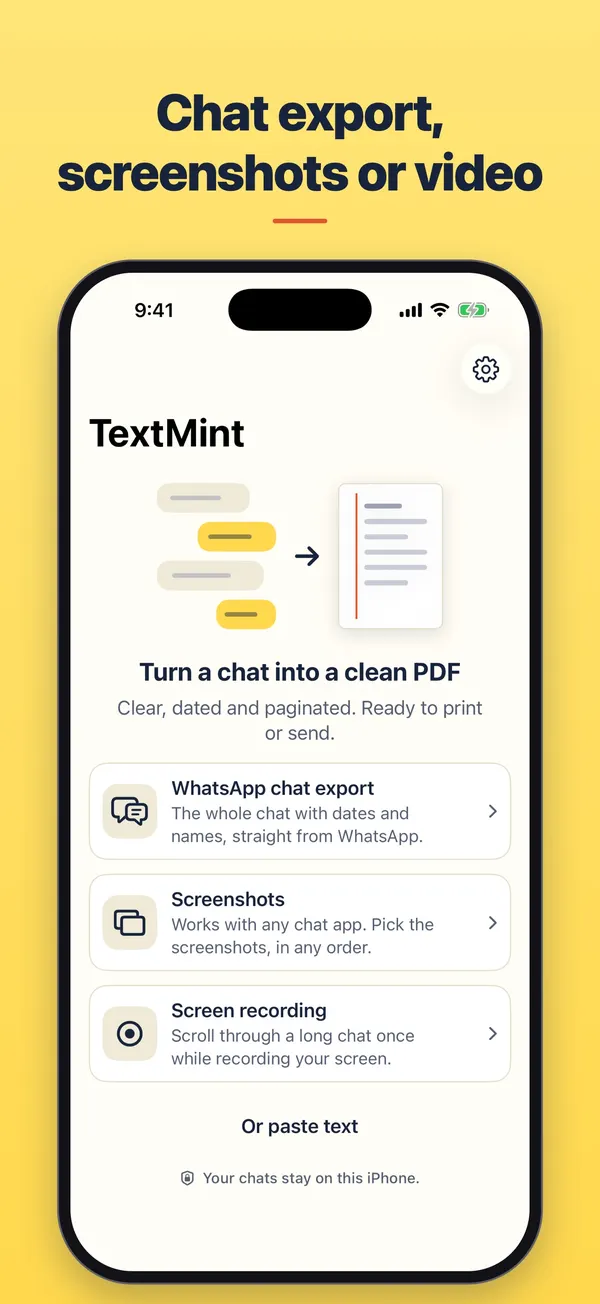
- Open it in TextMint. In TextMint, tap Add a conversation, choose Screen recording, then Choose recording and pick the video.
- Let TextMint go through it. TextMint takes the frames it needs, reads the text and builds the conversation, on your iPhone.
- Name and export. Tap Options to type the other person's name under Names, then tap Export PDF.
Tips
How to make a recording that reads well
- Scroll at an even speed. Fast flicks are fine, but slower is safer.
- Keep the keyboard closed, and do not switch to other apps while you record.
- Start at the first message you need and end at the last one, in one direction.
- Short on time? Overlapping screenshots work too. See how to turn chat screenshots into one PDF.
Good to know
Group chats, photos and dates
- Group chats. From screens, TextMint knows two sides: your messages on the right and everyone else on the left. In a group chat it cannot tell the other people apart. The Original screens layout keeps the screens as they looked, names included.
- Photos and links. Choose Original screens or Both to keep them in the PDF as they appeared.
- Dates. Where the conversation says "Today", "Yesterday" or a weekday, TextMint works out the date from when the recording was made, and the PDF says so.
TextMint is free to download and to try. Without a purchase, an export holds the first 3 message pages and carries a PREVIEW mark. A full export is a one-time purchase: One Export for one conversation, or TextMint Pro for every conversation. There is no subscription.
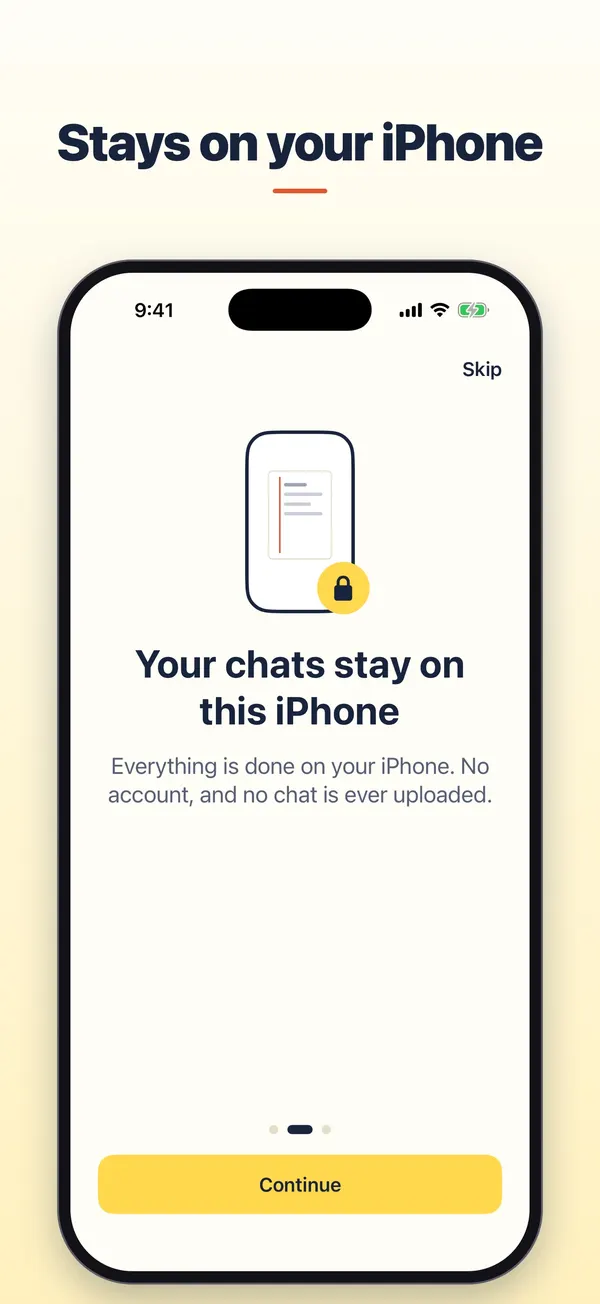
Everything happens on your phone. There is no account and your conversations are never uploaded. See the TextMint privacy policy.
FAQ
Questions
Does this work for green-bubble texts too?
Yes. TextMint reads what is on the screen, so iMessages and text messages are handled the same way.
Can I export all my conversations at once?
No. TextMint makes one document per conversation. Repeat the steps for each conversation you need.
Does my recording leave the iPhone?
No. TextMint reads it on your iPhone. Nothing is uploaded and there is no account.
How long can the recording be?
Up to 20 minutes. For a longer conversation, split it into two recordings and two documents, or export only the period you need.
Get TextMint
Turn a conversation into a clean, dated PDF
TextMint is free to download and to try. A full export is a one-time purchase, for one conversation or for every conversation. No subscription, no account, and your chats never leave your phone.
All TextMint guides · Export texts from iPhone to PDF · Chat screenshots to one PDF · Text messages as evidence
Sources
Sources
We link to the pages behind every statement about another app or platform. They can change after the date we checked them.
- Forward and share messages on iPhone, Apple Support, iPhone User Guide. Checked November 14, 2026.
- Take a screen recording on iPhone, Apple Support, iPhone User Guide. Checked November 14, 2026.
- Print iPhone text messages (SMS, RCS, iMessage) and WhatsApp chats, iMazing. Updated October 21, 2026. Checked November 14, 2026.