 Bumblly
DocMint guide
How to sign a PDF on your phone
Someone sent you a form or a contract to sign and send back. There is no printer and no scanner in sight. You can do it all on your phone. Here are the built-in ways, and how DocMint does it.
We make DocMint, a PDF app. The built-in ways come first and are fine for many forms.
Built in
Sign without an extra app
iPhone
- In supported apps such as Notes and Photos, open Markup, tap the add button and choose Add Signature. Sign with your finger, then drag the signature into place. In a form, you can tap a blank field and type in it (Apple Support).
- In iOS 26 and later, the Preview app fills out and signs PDF forms (Apple Support).
Android
- Google Drive fills in PDF forms that have form fields: open the PDF, tap Edit, then Form Filling (Google Drive Help).
- To sign by hand, Drive lets you draw on a PDF with your finger or a stylus (Google Drive Help). Files by Google has a pen tool for PDFs too (Files by Google Help).
Step by step
Sign and fill in a PDF with DocMint on iPhone
DocMint is useful when the document is on paper, when the form has no fields to type in, or when you also want to scan, reorder or redact pages.
- Get the document into DocMint. Import the PDF with Import, then Import PDF, or tap New scan to scan a paper form.
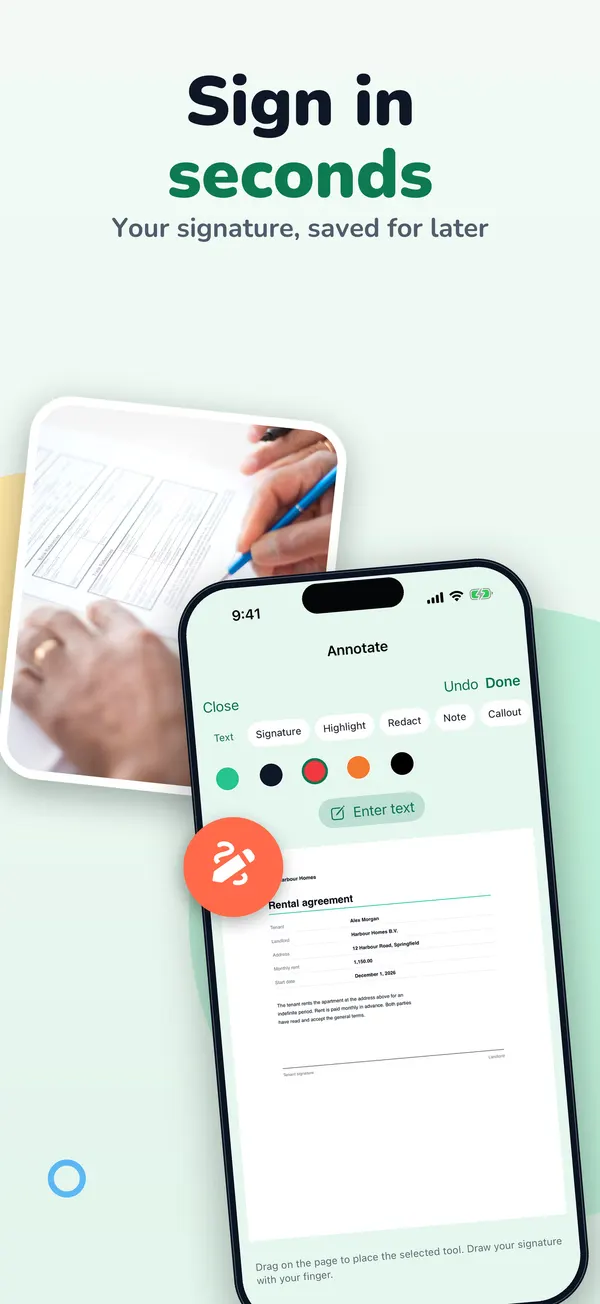
- Open Annotate. Open the document, go to the page you need and tap Annotate.
- Draw your signature. Choose Signature. Draw your signature with your finger and tap Save. It is kept under Saved signatures for next time.
- Place it. Tap the page where the signature should go.
- Fill in the rest. Use Text or Form text for names and dates, and Checkbox or Check for boxes. Tap Done when the page is ready.
- Send it back. Tap Export PDF, then Share PDF, and send it by email or any app.
Android
Sign with DocMint on Android
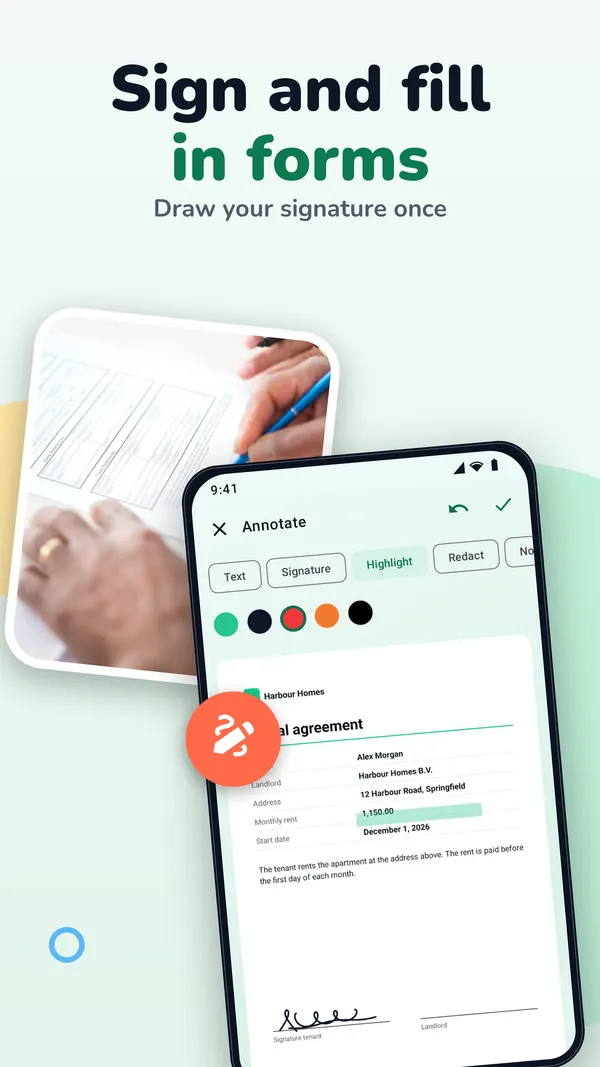
- Import the PDF or scan the paper, open the page and tap Annotate.
- Choose Signature and sign with your finger right on the page.
- Choose Text, Date field or Check, then tap where it should go.
- Tap Export PDF, then Share PDF or Save PDF to this device.
Good to know
What kind of signature this is
DocMint places a drawing of your signature on the page, like signing on paper. It does not add a certificate-based digital signature. If the sender uses an e-signing service and sent you a link, sign there instead.
Whether a drawn signature is enough is up to the person or organization that asked for it. When in doubt, ask them.
Scanning, editing pages, text recognition and signing are free, up to 20 pages per document. Your first exports carry no DocMint mark; after that, free exports get a small DocMint mark. DocMint Pro removes the mark and the page limit.
There is no account. Your documents stay on your phone, and DocMint does not upload them, their text or their file names. See the DocMint privacy policy.
FAQ
Questions
Is signing free in DocMint?
Yes. Signing and filling in forms are free. After your first clean exports, free exports carry a small DocMint mark.
Can I use the same signature again?
On iPhone and iPad, DocMint keeps your saved signatures. On Android you sign on the page each time.
Can I sign a paper document?
Yes. Scan it with New scan, then sign the scanned page.
Is my signature uploaded?
No. DocMint has no account and keeps your documents and signatures on your phone.
Get DocMint
Scan, sign and redact PDFs on your phone
DocMint is free to download. Scanning, text recognition and signing are free; DocMint Pro adds redacted PDF export and exports without the DocMint mark. No account, and your documents stay on your phone.
All DocMint guides · Scan a document to PDF · Remove personal data from a PDF · Redact a PDF on iPhone
Sources
Sources
We link to the pages behind every statement about another app or platform. They can change after the date we checked them.
- Fill out forms, sign documents, and create signatures on iPhone, Apple Support, iPhone User Guide. Checked November 14, 2026.
- Fill out and sign PDF forms in Preview on iPhone, Apple Support, iPhone User Guide (iOS 26 and iOS 27). Checked November 14, 2026.
- Fill out PDF forms in Google Drive (Android), Google Drive Help. Checked November 14, 2026.
- Annotate PDFs with a stylus or freehand on Android, Google Drive Help. Checked November 14, 2026.
- Open, manage & edit PDFs in Files by Google, Files by Google Help. Checked November 14, 2026.