 Bumblly
DocMint guide
How to remove personal data from a PDF before you send it
A landlord wants a payslip. A new job wants a copy of your ID. A company asks for a bank statement. Often they need one fact, and you send a whole page of personal details. Here is how to send less, and how to make sure what you remove is really gone.
We make DocMint, an app that redacts PDFs. The checklist works whatever app you use.
Checklist
Where personal data hides in a PDF
- On the page: names, addresses, dates of birth, account and ID numbers, signatures, photos and barcodes.
- Under black boxes: a box drawn on top often leaves the text in the file. A 2019 court filing is the best-known example (The Judges' Journal).
- In hidden data: Adobe notes that redaction removes visible text and graphics, while metadata and embedded content have to be removed separately (Adobe Help).
- In the text layer of a scan: a searchable scan carries a hidden layer of recognized text under the picture.
- In the file name: "Statement J Smith 4471.pdf" already says a lot.
Common examples
What people often leave in
- Bank statement: other transactions, the balance and the full account number, when only your name and address were needed.
- Payslip: tax and social security numbers, when only the salary was needed.
- ID copy: the document number and the photo, when the receiver only had to see your name. Ask what they really need; rules for ID copies differ by country.
- Contract: the other party's details and your signature, when a single clause is all someone asked for.
Step by step
Remove it with DocMint
- Ask what is needed. Find out which facts the receiver needs: a name and an address, a salary, the last four digits of an account. Everything else can go.
- Mark it in a PDF. Import the PDF, open it and tap Redact. Drag a box over each detail that must go, on every page.
- Or mark it on a scan. For a scanned paper document, open the page, tap Annotate and choose Redact.
- Export a new file. For a PDF, tap Export redacted PDF. For a scan, use Export PDF. Both make a new file; your original stays as it was.
- Check it. Open the new file and search for a number you covered, or copy all its text into a note. It should not be there.
- Give it a plain name. Before sending, give the file a name that does not hold personal details itself.
What happens
What the new file holds
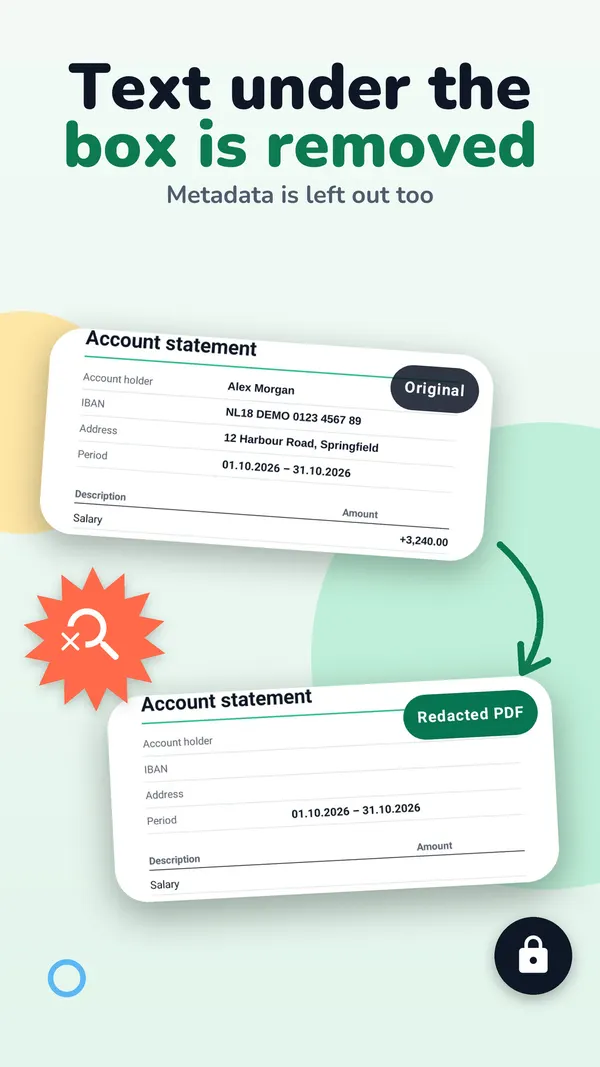
- In a redacted PDF, the text and pictures under each box are removed from the file, not just covered.
- The redacted PDF is built from the pages only: metadata such as the author and title, and attached files, do not come along.
- On a scan, the box is burned into the picture of the page, and that page's recognized text is left out of the export.
- DocMint does not search for personal data by itself. You mark each area, so look through every page.
Marking areas is free. Exporting a redacted PDF is part of DocMint Pro, which is a one-time Lifetime purchase or a monthly subscription. The store shows the price before you buy.
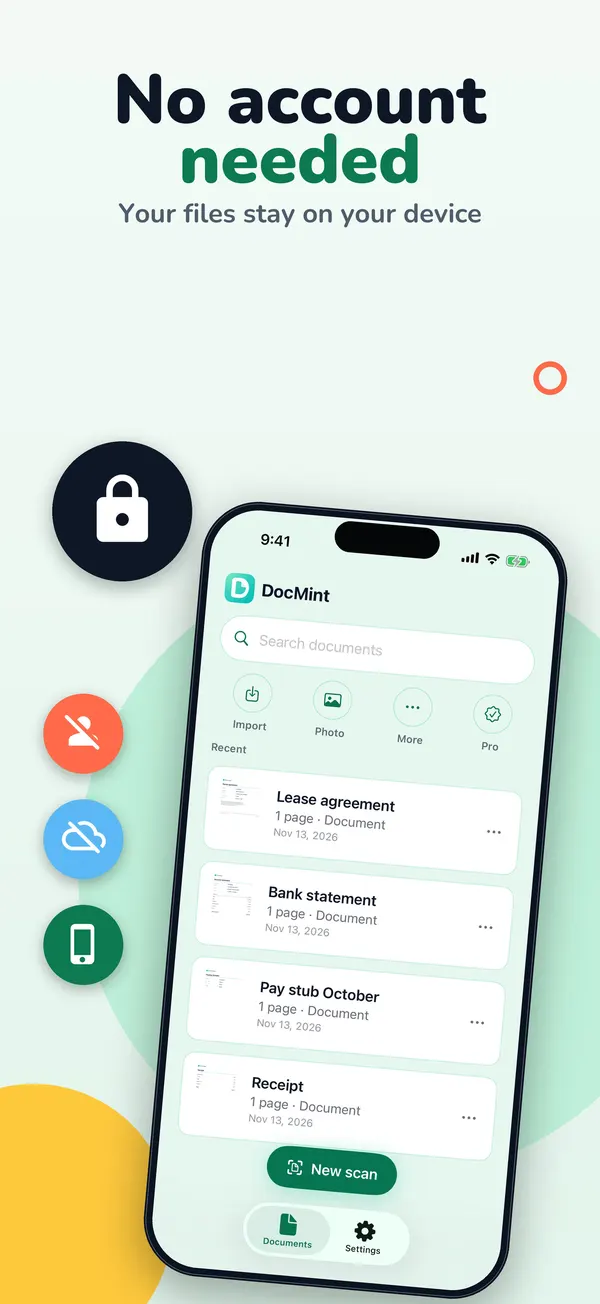
There is no account. Your documents stay on your phone, and DocMint does not upload them, their text or their file names. See the DocMint privacy policy.
For the details of redacting on your phone, see redacting on iPhone or redacting on Android.
FAQ
Questions
What is PDF metadata?
Information about the file itself, such as the author, the title and the program that made it. It is not on the page, but PDF apps can show it.
Can I just cover a number with a sticker or a shape?
On screen it looks covered, but the number can stay in the file. Use a tool that removes it, and check the result.
Does DocMint find personal data for me?
No. You decide what to remove and mark each area yourself.
Is the original file changed?
No. DocMint always makes a new file. Keep the original in a safe place, or delete it if you no longer need it.
Get DocMint
Scan, sign and redact PDFs on your phone
DocMint is free to download. Scanning, text recognition and signing are free; DocMint Pro adds redacted PDF export and exports without the DocMint mark. No account, and your documents stay on your phone.
All DocMint guides · Black out text in a PDF · Redact a PDF on iPhone · Redact a PDF on Android
Sources
Sources
We link to the pages behind every statement about another app or platform. They can change after the date we checked them.
- Embarrassing Redaction Failures, Herbert B. Dixon Jr., The Judges' Journal, American Bar Association. Published May 1, 2019. Checked November 14, 2026.
- About redacting and sanitizing PDFs in Acrobat Pro, Adobe Help. Last updated October 22, 2026. Checked November 14, 2026.