 Bumblly
DocMint guide
How to scan a document to PDF on your phone
A letter, a contract, a receipt or a form: someone wants it as a PDF, and the scanner is at the office. Your phone can do it. Here are the built-in ways, tips for a sharp scan, and how DocMint turns paper into a clean PDF.
We make DocMint, a scanner and PDF app. The built-in options come first; they are fine for many jobs.
Built in
The free scanners already on your phone
- iPhone, Notes: open a note in the Notes app and choose Scan Documents. The scan is saved as a PDF in the note (Apple Support).
- iPhone, Preview: in iOS 26 and later, the Preview app has Scan Documents and creates a PDF (Apple Support).
- Android, Google Drive: tap the camera button in the Drive app, scan, crop and clean the pages, and save the result to your Drive as a PDF or JPG (Google Drive Help).
For a single page these are often enough. DocMint is for when you want more control over the pages and the PDF, want to sign or redact it, or do not want the scan in a cloud folder.
Tips
How to get a sharp scan
- Use daylight or a bright lamp, and avoid your own shadow on the page.
- Put the page on a dark, flat surface, so the edges stand out.
- Hold the phone flat above the page, not at an angle, and keep the whole page in view.
- Hold still for a moment while the page is captured.
- For a document with many pages, scan them in order; you can still reorder them later.
Step by step
Scan to PDF with DocMint
On iPhone, DocMint uses Apple's document camera. On Android, it uses Google's document scanner, which Play services downloads once the first time, and DocMint's own camera if that scanner cannot start.
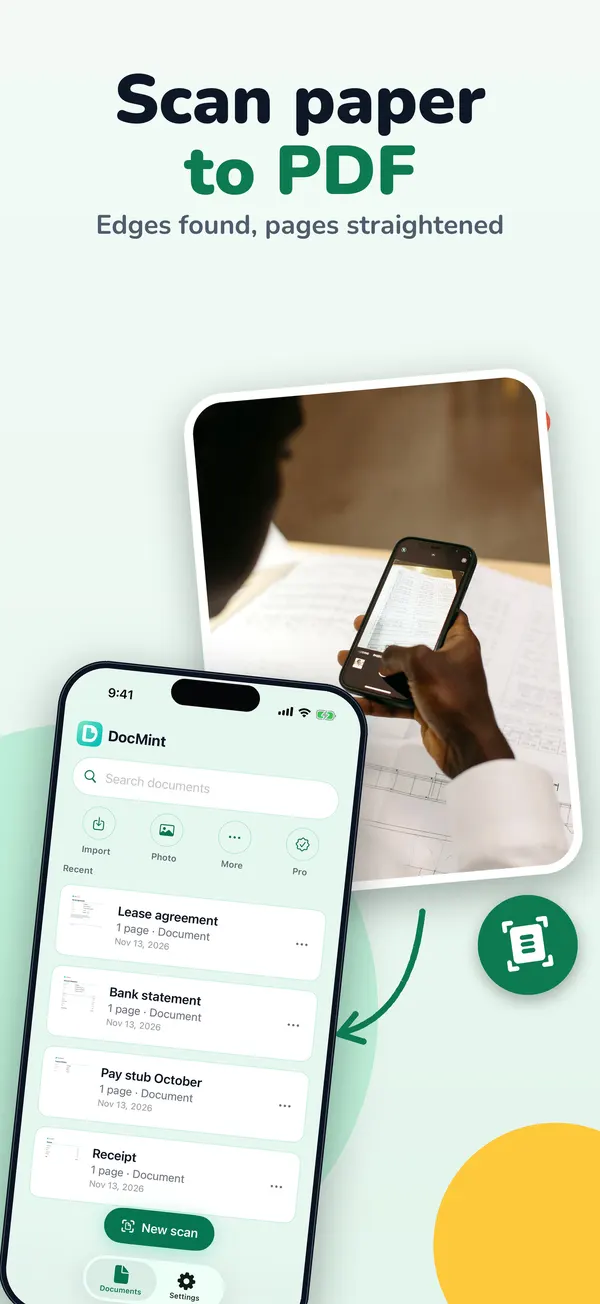
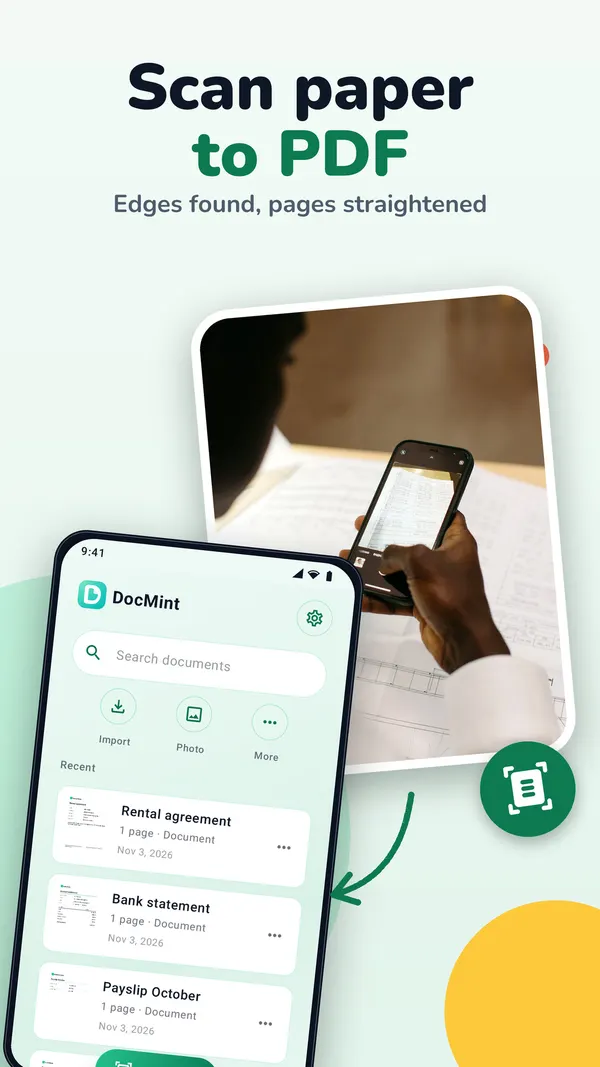
- Start a new scan. Open DocMint and tap New scan. The first time, DocMint explains that it uses the camera only to capture the page; tap Continue and allow camera access.
- Capture the pages. Hold the phone over the page. The scanner finds the edges and straightens the page. Capture each page, then save.
- Wait for the pages to save. DocMint saves the pages, reads their text and opens the document. On iPhone it shows "Saving page 2 of 5" while it works.
- Fix the pages. Under each page you find Crop, Rotate and the filters Original, Color, Auto clean, Grayscale and Black & white. You can also reorder, duplicate or delete pages.
- Choose the PDF options. Tap Export PDF. Pick the page size (Auto, A4 or Letter), the quality (Small, Standard or Best), and turn on Page numbers or Searchable text if you want them.
- Share or save. Tap Share PDF to send or save it. On Android there is also Save PDF to this device.
Searchable
Searchable text
DocMint recognizes the text on your pages on the phone itself. With Searchable text on, you can search the exported PDF and copy from it. It reads many languages, including English, Spanish, French, German, Chinese, Japanese and Korean.
Scanning, editing pages, text recognition and signing are free, up to 20 pages per document. Your first exports carry no DocMint mark; after that, free exports get a small DocMint mark. DocMint Pro removes the mark and the page limit.
There is no account. Your documents stay on your phone, and DocMint does not upload them, their text or their file names. See the DocMint privacy policy.
FAQ
Questions
Is scanning free?
Yes. Scanning, cropping, filters and text recognition are free, up to 20 pages per document.
Can I add pages later?
Yes. Open the document and use Add pages to scan more, or import photos or a PDF.
Is my scan uploaded anywhere?
No. Your documents stay on your phone. You decide when to share a PDF.
My scan is crooked. What now?
Tap Crop and drag each corner to the corner of the page. Auto tries to find the page for you.
Get DocMint
Scan, sign and redact PDFs on your phone
DocMint is free to download. Scanning, text recognition and signing are free; DocMint Pro adds redacted PDF export and exports without the DocMint mark. No account, and your documents stay on your phone.
All DocMint guides · Sign a PDF on your phone · Remove personal data from a PDF · Redact a PDF on iPhone
Sources
Sources
We link to the pages behind every statement about another app or platform. They can change after the date we checked them.
- Scan text and documents in Notes using the iPhone camera, Apple Support, iPhone User Guide. Checked November 14, 2026.
- Scan text and documents in Preview on iPhone, Apple Support, iPhone User Guide (iOS 26 and iOS 27). Checked November 14, 2026.
- Scan documents with Google Drive (Android), Google Drive Help. Checked November 14, 2026.