 Bumblly
DocMint guide
How to redact a PDF on iPhone so the text is really gone
You want to send a PDF but keep a name, an account number or an address out of it. On a phone the obvious move is to draw a black box. That box hides the text from your eyes, not from the file. Here is how to remove it for real.
We make DocMint, the app in this guide. We explain the free tools first, and where they fall short.
Why
Why a black box is not enough
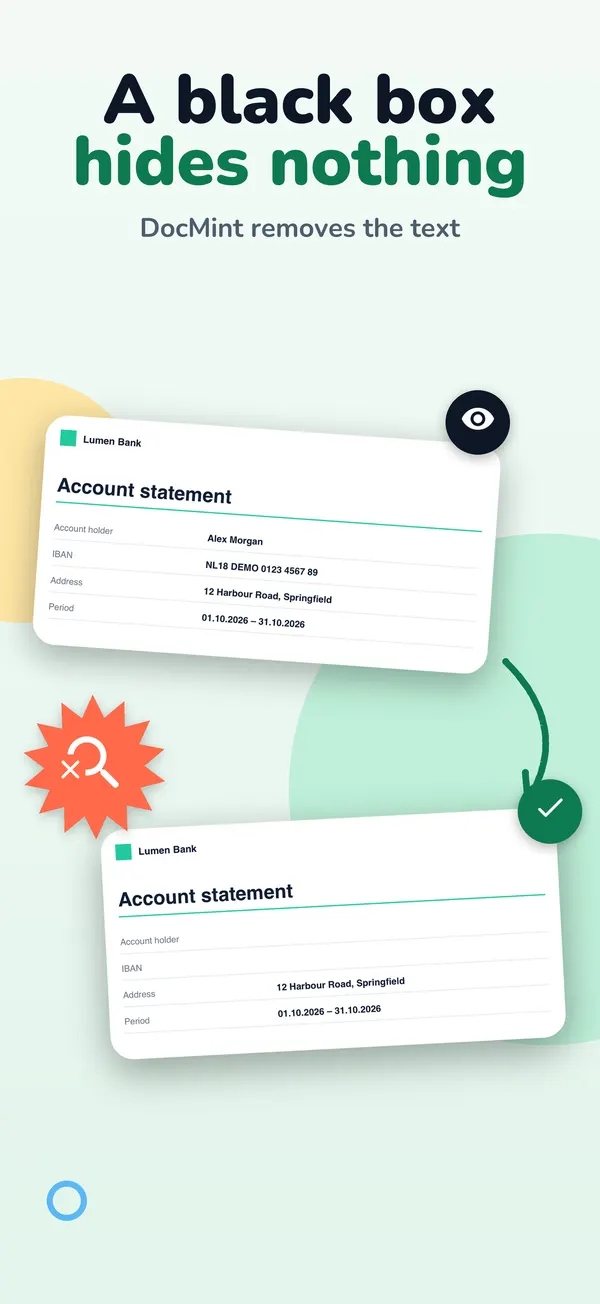
A PDF keeps its words as text. That is why you can search and copy them. A box drawn on top covers the words on screen, but they stay in the file. In 2019, lawyers for Paul Manafort filed a PDF with blacked-out passages in a US federal court. Reporters copied the text and pasted it into another document, and the hidden passages appeared (The Judges' Journal, American Bar Association).
More on this in how to black out text in a PDF so it is really gone.
Free
What iPhone can do by itself
- Markup lets you draw, write and add shapes on screenshots, PDFs and photos in apps such as Notes and Photos (Apple Support).
- Preview, Apple's app for PDFs and images on iPhone in iOS 26 and later, adds stickers, signatures, shapes and text to a PDF (Apple Support).
These tools add something on top of the page. Apple's pages for them do not describe removing text from a PDF.
A screenshot of the page is only pixels, so a box you drew becomes part of the picture. That works in a pinch, but you send a picture instead of a PDF, it loses sharpness, and none of its text can be searched or copied.
On a computer, Adobe Acrobat Pro has a Redact tool that removes text and images and can also remove hidden information (Adobe Help).
Step by step
Redact a PDF with DocMint on iPhone
- Import the PDF. In DocMint, tap Import, then Import PDF, and pick the file. You can also share a PDF from Files or Mail to DocMint.
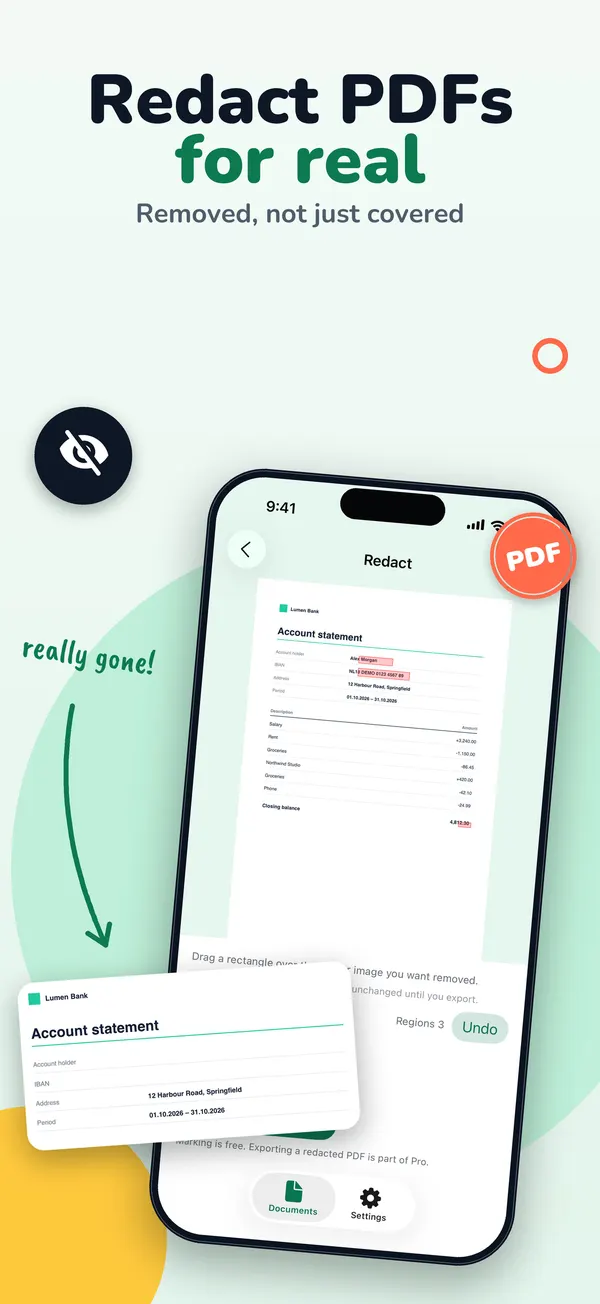
- Open the Redact tool. Open the document. In the row of tools under the page, tap Redact. It is there for PDFs you imported.
- Mark what must go. Drag a rectangle over each name, number, address or picture. Use the arrows to go to the next page. Undo and Remove region fix mistakes.
- Export the redacted PDF. Tap Export redacted PDF. DocMint builds a new file. The original stays unchanged.
- Save or send it. The share sheet opens. Save the new PDF to Files, or send it.
- Check the result. Open the new PDF and search for a word you covered, or select all its text and paste it into a note. The word should not be there.
What happens
What DocMint removes
- The text under each box is removed from the file, not just covered.
- Pictures under a box are painted over in their pixels.
- The new PDF is built from the pages only, so the document's metadata, such as the author and title, and any attached files do not come along.
- When DocMint cannot place a font's letters exactly, it turns that page into a picture with the boxes painted in, and tells you which pages it flattened. Text on a flattened page can no longer be selected.
Only Export redacted PDF removes what you marked in the Redact tool. The normal Export PDF does not, and DocMint warns you about that on the export screen.
Paper
Scans of paper documents
A scan has no original PDF behind it. To hide part of a scanned page, open the page, tap Annotate and choose Redact. The black box is burned into the picture of the page, and the recognized text of that page is left out of the export. This is free.
Limits
What to watch out for
- Only what is under a box is removed. If the same name appears on another page, mark it there too. Search the document before you export.
- Cover whole words. A thin box over only the top or bottom of the letters can miss them. Make the box a little larger than the text.
- Older versions. DocMint 1.2.7 and 1.2.8 for iPhone, and Android versions before 1.1.0, could leave part of the covered text in the file when a PDF used certain common fonts. This was fixed in November 2026. If you shared a redacted PDF made with an older version, redact the original again and share the new file.
Marking areas is free. Exporting a redacted PDF is part of DocMint Pro, which is a one-time Lifetime purchase or a monthly subscription. The store shows the price before you buy.
There is no account. Your documents stay on your phone, and DocMint does not upload them, their text or their file names. See the DocMint privacy policy.
FAQ
Questions
Is a black box drawn with Markup enough?
No. It covers the text on screen, but the text can stay in the file and can be copied out.
Does the original PDF change?
No. DocMint saves the redacted copy as a new file. Your original stays as it was.
Is redaction free in DocMint?
Marking areas is free. Exporting a redacted PDF is part of DocMint Pro, which is a one-time Lifetime purchase or a monthly subscription. The store shows the price before you buy.
Can I redact a password-protected PDF?
Not directly. DocMint asks you to remove the password first, then import the PDF again.
Does DocMint upload my PDF?
No. There is no account, and your documents stay on your iPhone or iPad.
Get DocMint
Scan, sign and redact PDFs on your phone
DocMint is free to download. Scanning, text recognition and signing are free; DocMint Pro adds redacted PDF export and exports without the DocMint mark. No account, and your documents stay on your phone.
All DocMint guides · Black out text in a PDF · Remove personal data from a PDF · Redact a PDF on Android
Sources
Sources
We link to the pages behind every statement about another app or platform. They can change after the date we checked them.
- Embarrassing Redaction Failures, Herbert B. Dixon Jr., The Judges' Journal, American Bar Association. Published May 1, 2019. Checked November 14, 2026.
- Draw and handwrite with Markup on iPhone, Apple Support, iPhone User Guide. Checked November 14, 2026.
- Annotate a PDF or image in Preview on iPhone, Apple Support, iPhone User Guide. Checked November 14, 2026.
- Redact sensitive content in Acrobat Pro, Adobe Help. Last updated August 31, 2026. Checked November 14, 2026.