 Bumblly
PupWatch guide
How to check on your dog at home with two phones
Your dog is in the kitchen, you are working upstairs, and you want to know whether all is quiet. You do not need a pet camera for that. Two phones can do it. Here are two ways, and the details that make it work for a whole afternoon.
We make PupWatch, the app in this guide. We explain the free ways first, and we say where PupWatch needs a paid plan.
Quick way
The quick way: a video call
Start a video call between the two phones, for example a FaceTime call between two Apple devices (Apple Support), and leave one phone with your dog. For a quick look this works. For longer it gets awkward:
- Both phones are busy with the call the whole time.
- If the connection drops, someone has to call again.
- A call is made for talking, so you see and hear everything, and your dog hears the call too.
For a whole afternoon or a nightly routine, an app made for the job is easier.
Before you start
What you need
- A phone or tablet for your dog. An iPhone or iPad needs iOS 18 or iPadOS 18 or later. For iPhones that means an iPhone XS, iPhone XR, iPhone SE (2nd generation) or newer (list from Apple). An Android phone needs Android 8.0 or later. To check, open Settings > General > About on an iPhone (Apple Support), or Settings > About phone on Android (Android Help).
- Your own phone to watch on. iPhone, iPad and Android work together in any combination.
- A charger with a cable for the phone that stays with your dog.
- Home Wi-Fi. No SIM card is needed.
Step by step
Set up PupWatch in six steps
- Install PupWatch on both phones. Install PupWatch on the phone that stays with your dog and on your own phone. Charge the one for your dog and connect both to your home Wi-Fi.
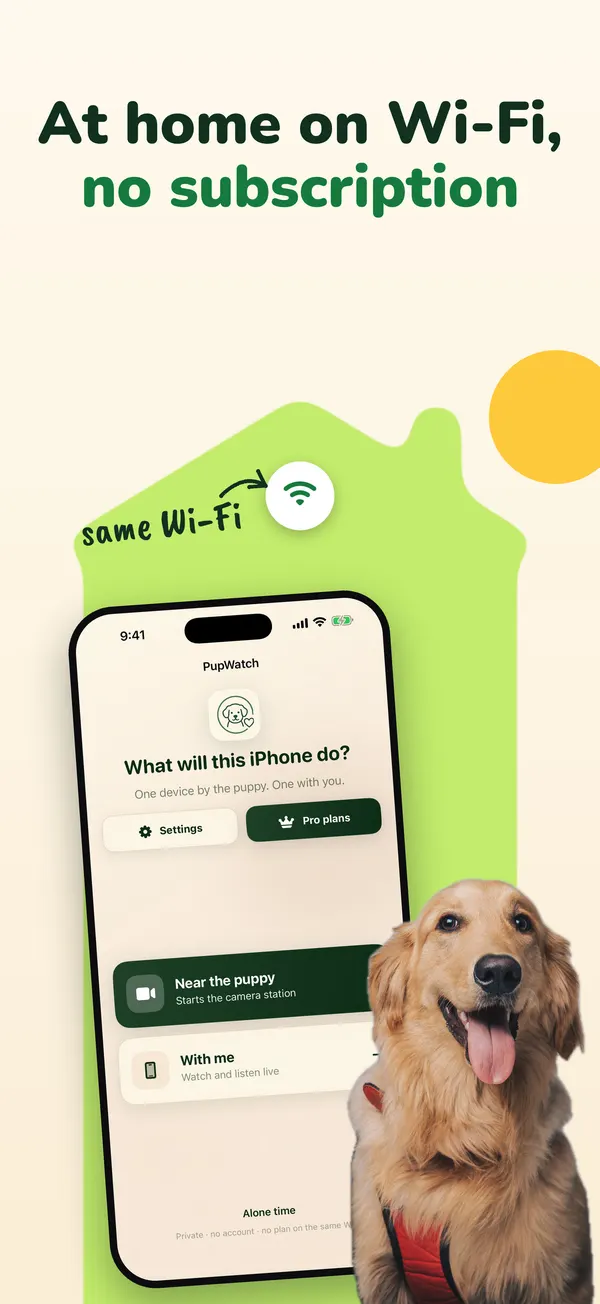
- Start the camera phone. On an iPhone or iPad, open PupWatch and tap Near the puppy. On Android, choose Puppy Station. Allow access to the camera and the microphone.
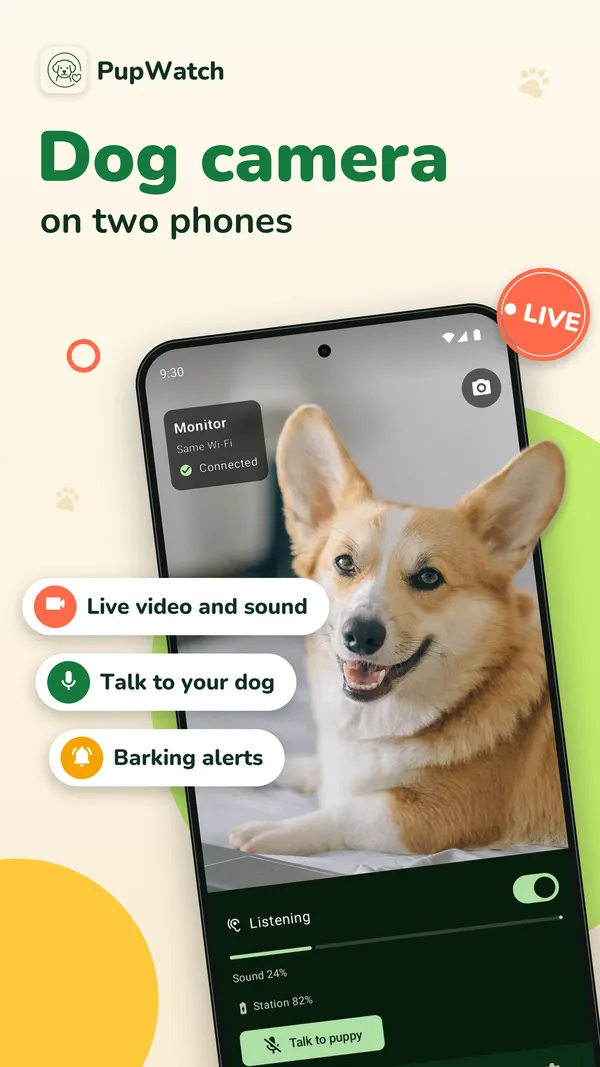
- Start your own phone. On an iPhone, tap With me. On Android, choose Monitor.
- Pair the two. The phone with your dog shows a six-character code and a QR code. Scan the QR code or type the code on your phone. An iPhone asks once for Local Network access: allow it, so PupWatch can see that you are on the same Wi-Fi.
- Place the camera phone. Put it somewhere stable and high enough, with a view of the bed or crate and out of your dog's reach. Route the cable where your dog cannot chew it.
- Keep it on power. Plug it in and leave PupWatch open on it. If you close PupWatch there, the picture stops.
Same Wi-Fi
Why watching at home costs nothing
When both phones are on the same Wi-Fi, live video and sound need no plan and no account. PupWatch checks this through your local network: the phone with your dog announces itself there, and your phone looks for it.
- Local Network access. If you turned it off on an iPhone, PupWatch shows a card with a button to open Settings.
- Guest Wi-Fi. Some guest networks and routers keep devices apart. Then PupWatch cannot see that you are home. Put both phones on your main network.
- Leaving home. When your phone leaves the Wi-Fi, PupWatch notices within a few minutes and shows the Pro plans. Watching over another network or mobile data, and two-way talk, are part of PupWatch Pro.
More on what is free and what is not: a dog camera app without a subscription.
Tips
Tips for a calm, reliable picture
- Turn off notifications from other apps on the phone with your dog, so no sounds reach your dog.
- Do not cover that phone, and keep it out of the sun and away from heaters.
- On an iPhone you can dim its screen with Dim Puppy Station screen. On Android, use Turn on night screen.
- Turn up the volume on your own phone if you want to hear barking. On an iPhone, listening continues when you lock the screen, as long as PupWatch stays open on the camera phone.
- Want a partner or dog sitter to watch too? They can join with the same code. On an iPhone, Invite someone shares a link with the code.
- PupWatch helps you check in. It does not replace care for your dog. When in doubt, go and look.
FAQ
Questions
Do both phones have to be the same brand?
No. iPhone, iPad and Android phones work together in any combination.
Can I watch when I am not at home?
Yes, with PupWatch Pro. Watching over another Wi-Fi network or mobile data is part of Pro. At home on the same Wi-Fi you need no plan.
Does the camera phone need a SIM card?
No. It uses your Wi-Fi.
Can two people watch at the same time?
Yes. A second person can join with the same code or QR code.
Does the phone with my dog use a lot of battery?
Yes. It sends video the whole time, so keep it on the charger.
Get PupWatch
Turn two phones into a dog camera
PupWatch is free to download. Live video and sound are free when both phones are on the same Wi-Fi. PupWatch Pro, a monthly or yearly subscription, adds watching from anywhere and two-way talk. No account needed.
All PupWatch guides · Without a subscription · Separation anxiety and cameras
Sources
Sources
We link to the pages behind every statement about another app, product or organization. They can change after the date we checked them.
- Make FaceTime calls on iPhone, Apple Support, iPhone User Guide. Checked November 14, 2026.
- iPhone models compatible with iOS 18, Apple Support, iPhone User Guide. Checked November 14, 2026.
- Find the software version on your iPhone, iPad, or iPod touch, Apple Support. Published October 12, 2026. Checked November 14, 2026.
- Check & update your Android version, Android Help. Checked November 14, 2026.